OS update and reboot of sites and nodes
Keenetic RMM allows you to update the operating system to the latest available version from a pre-selected channel, as well as reboot devices remotely — one at a time or across multiple sites at once. You can learn how to set up the update channel here.
Tip
For the best Mesh Wi-Fi System performance, it is recommended that all nodes run the same KeeneticOS version.
Sites page
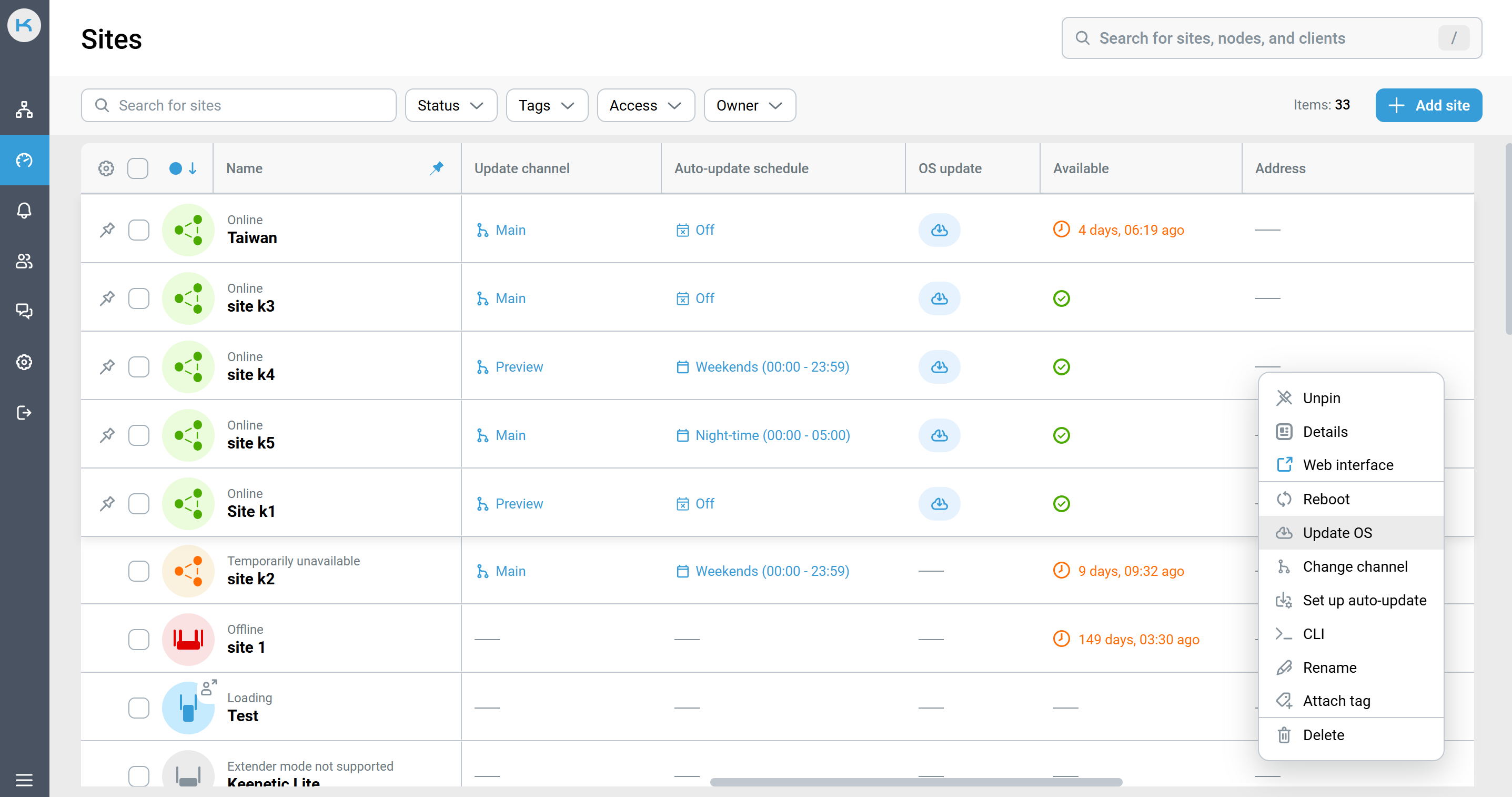
The site table has three columns related to updates:
Column | What it shows |
|---|---|
Update channel | The channel the device receives updates from |
Auto-update schedule |
|
OS update | A green checkmark means the controller is running the current version; a cloud-with-arrow icon means an update is available; a dash means the information is unavailable |
Operations on a single site
Hover over a site row and open the context menu. The following options are available:
Reboot — restarts the site's devices.
Update OS — installs the available OS version.
Change channel — switches between update channels.
Configure auto-update — enables automatic updates and selects a schedule.
Operations on multiple sites
Select the sites you need using the checkboxes in the first column. A panel will appear above the table, showing the number of selected rows, along with the Reboot, Update OS, Change channel, Set up auto-update, and other buttons.
This is a convenient way to maintain a large fleet of devices: for example, filter sites by status or tag, select them all, and launch the update with a single command.
Note
Once an operation is started, you will be redirected to the Tasks page to track the progress of the OS update or reboot.
Nodes page
The Nodes page is useful when you need to work with specific devices rather than an entire site.
The OS version column shows the current version, and if an update has been released for the device, the available version is shown next to an arrow (for example, 5.1.4 → 5.1.5).
A node's context menu contains the Reboot and Update OS operations. To run an operation on a group, select the nodes using the checkboxes — the Reboot, Update OS, and other buttons will appear in the top panel.
Update channels
The channel determines which OS builds a device receives:
Main — stable releases. Recommended for production sites.
Preview — builds released ahead of the stable release.
Development — the newest builds with new features. Suitable for test benches.
LTS — Long-term support. Security fixes only, with no new features.
The channel can be changed for an individual site as well as for a group of sites.
Auto-update and schedule
To avoid running updates manually, enable automatic installation and set a schedule — the time window during which Keenetic RMM may install updates. The available options are Always on, Night-time, Weekdays, Weekends, Off, and a custom schedule defined in the web interface. The current value is shown in the Auto-update schedule column on the Sites page and on the Operations tab of the Site Details Page.
The OS can also be updated from the site details page — on the Operations tab, which displays the controller's current and available versions, the Update now button, and the channel, auto-update and schedule settings. Read more about this in the article Site Details Page.
Important
Operations are performed only on devices with "Online" status.
An OS update is available for a site if the controller is running OS version
4.0or higher.Rebooting a site is possible if the controller is running OS version
3.8.2or higher.Rebooting the Wi-Fi system's extenders is possible if the controller is running OS version
3.8.2or higher.During an update or reboot, access to the device's web interface via Keenetic RMM is temporarily unavailable.
Updating the controller causes a brief loss of connection to the entire site, including connected extenders and client devices. Plan operations for periods of minimal load.
Operation results are recorded in the event log, and notifications about key events can be received via Telegram.